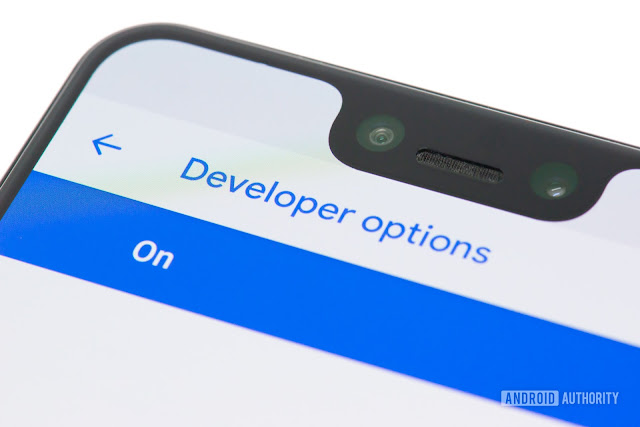
What is Developer Options? How can I see it?
Back in Android 4.2, Google hid Developer Options due to most “normal” users not using that feature. Claiming it leads to less confusion to keep it out of sight.
Developer options is now a hidden feature in android devices. It gives you advanced features and controls to your android device. It contains major options like USB Debugging which gives a major access to control your android device.
Example; To see your android’s screen on a computer with or without the use of data connection, most of the apps that perform this operation requires access to developer options.
You can also use developer options to speed up your device by disabling some animation in the developer options. There are lot of developer options to talk about but let’s take this few.
Now, The process to show developer options is different on many android devices, but has the same format. Learn How to enable yours.
PROCEDURE (How to Unhide Developer Options)
- Open Settings on your Android Device.⚙
- Look for About Device or About Phone or System and open.
(Found at system settings column). (See Screenshot) - Then, look for Build number and double-double tap on it (usually 5 times) till it says “You are now a developer” to unhide it. (See Screenshot 1 2 3) NOTE: Open “Software Information” if “Build number” is not found in Step 2.
- Go back to your phone’s settings home and look for “Developer Options“.
(Found at system settings column, comes before About device/System/About phone) See Screenshot. - Open Developer Options and turn it on. (The Switch button is found at the top Right of the Developer options settings) See Screenshot.